Integration recommendations
This page describes recommended integration patterns for common webshop touchpoints.
This documentation is currently under development. If you encounter any gaps, please contact your project manager at Crystal Design.
PDP integration (recommended starting point)
There are two common approaches on a product detail page:
- Embed the PDP module
- Use the DIVA PDP module to render product content (e.g. images and presentation)
- From the PDP, the configurator can be opened when needed
- Keep the shop PDP and add a “Configure” CTA
- The webshop renders the PDP
- A button opens the configurator
Product mapping requirement
The webshop needs to store the DIVA productId alongside the shop article and pass it to DIVA at initialization.
Example initialization for the configurator from the CTA Button in the:
diva.currentComponent = {
  type: 'DIVA_WEBPLANNER',
  parameters: { productId: '<PRODUCT_ID>' },
};
Basket integration flow (recommended)
If basket integration is enabled, the webshop listens for onAddToBasket and forwards the divaNr to the webshop backend.
High-level flow:
- Webshop listens for
onAddToBasket - Webshop backend receives the
divaNr - Webshop backend fetches the configuration from the DIVA API (using
X-API-KEY) - Webshop backend converts configuration to basket line items and adds them to the basket
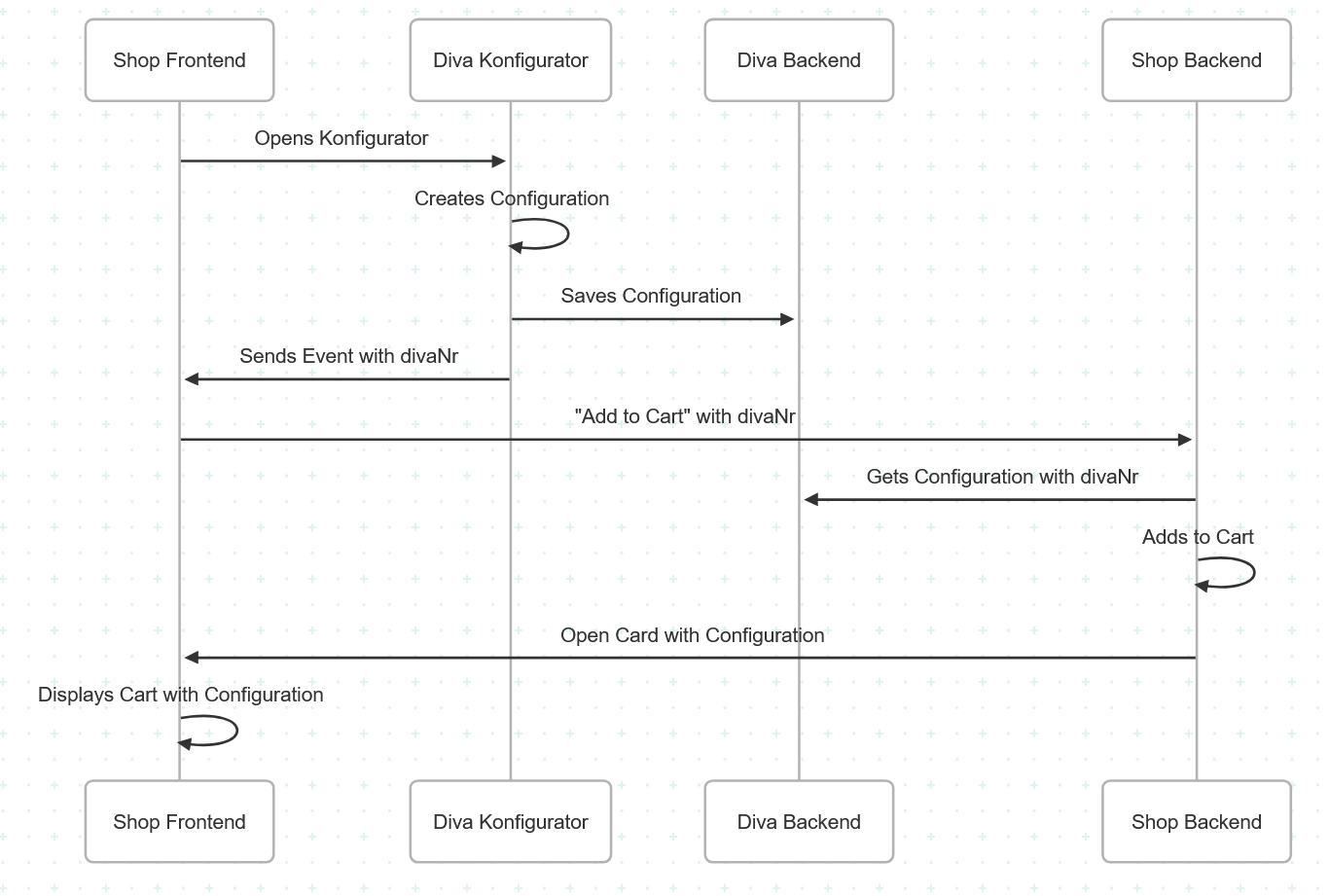
See:
- Event details: Integrating
diva-frameworkinto an existing webpage - Fetch API: Fetching a Configuration from the Service
Basket page integration
On the basket/cart page, it is recommended to provide:
- Edit configuration: a link/button to reopen the configurator with the saved
divaNr - DIVA PDF: a link to the PDF document provided in the configuration object
Typical behavior:
- When the user clicks “Edit”, open the configurator with
divaNr - When the user clicks “PDF”, open the
PDFDocumentURL
Example (reopen configurator):
diva.currentComponent = {
  type: 'DIVA_WEBPLANNER',
  parameters: { divaNr: '<DIVA_NR>' },
};
See:
- Field reference: The Configuration Object
Dedicated configuration page (recommended for deep-links)
It is recommended to provide a dedicated page that can open a configuration by URL parameter.
Example URL:
/configurator?DivaNr=DIVA-7867231-1&lang=fr
Notes:
- A deep link like this is needed so that DIVA can provide it in its PDF, allowing the user to return to an existing configuration.
- If no
DivaNrparameter is present, the page can show an input field where the user enters aDivaNrmanually. - The page loads the configurator with the provided
divaNrand optionally useslangto set the same language the configuration was saved
Landing / model page integration
For marketing pages that promote a single model, it is recommended to open the configurator directly with a product reference:
diva.currentComponent = {
  type: 'DIVA_WEBPLANNER',
  parameters: { productId: '<PRODUCT_ID>' },
};
Version management
DIVA releases new versions on a monthly basis. It is recommended to keep the integration up to date to benefit from the latest features, performance improvements, and bug fixes.
Updating the version
Typically, only the version number in the script imports needs to be changed:
<!-- Example: updating from version 1.2.0 to 1.3.0 -->
<script src="https://cdn.jsdelivr.net/npm/@crystaldesign/diva-core@1.3.0/build/umd/diva-core.umd.min.js"></script>
Recommended: configurable version setting
To simplify updates, it is recommended to store the DIVA version as a configurable setting in the webshop (e.g. in the admin panel or CMS configuration). This allows administrators to update the version without code changes or deployments.
Example implementation:
// Version from shop configuration (e.g. admin setting, environment variable)
const DIVA_VERSION = shopConfig.divaVersion; // e.g. "1.3.0"

// Dynamically load scripts with configured version
function loadDivaScripts(version) {
  const scripts = [
    `https://cdn.jsdelivr.net/npm/@crystaldesign/diva-core@${version}/build/umd/diva-core.umd.min.js`,
    `https://cdn.jsdelivr.net/npm/@crystaldesign/diva-web-planner-react@${version}/build/umd/diva-web-planner-react.umd.min.js`,
    // ... other module scripts
  ];
  // Load scripts...
}
This approach allows quick version updates in case of issues or when a new release is available.